Send guest messages automatically
Pre-arrival, welcome, check-out and thank-you emails that go out around every stay you hold a guest email for.
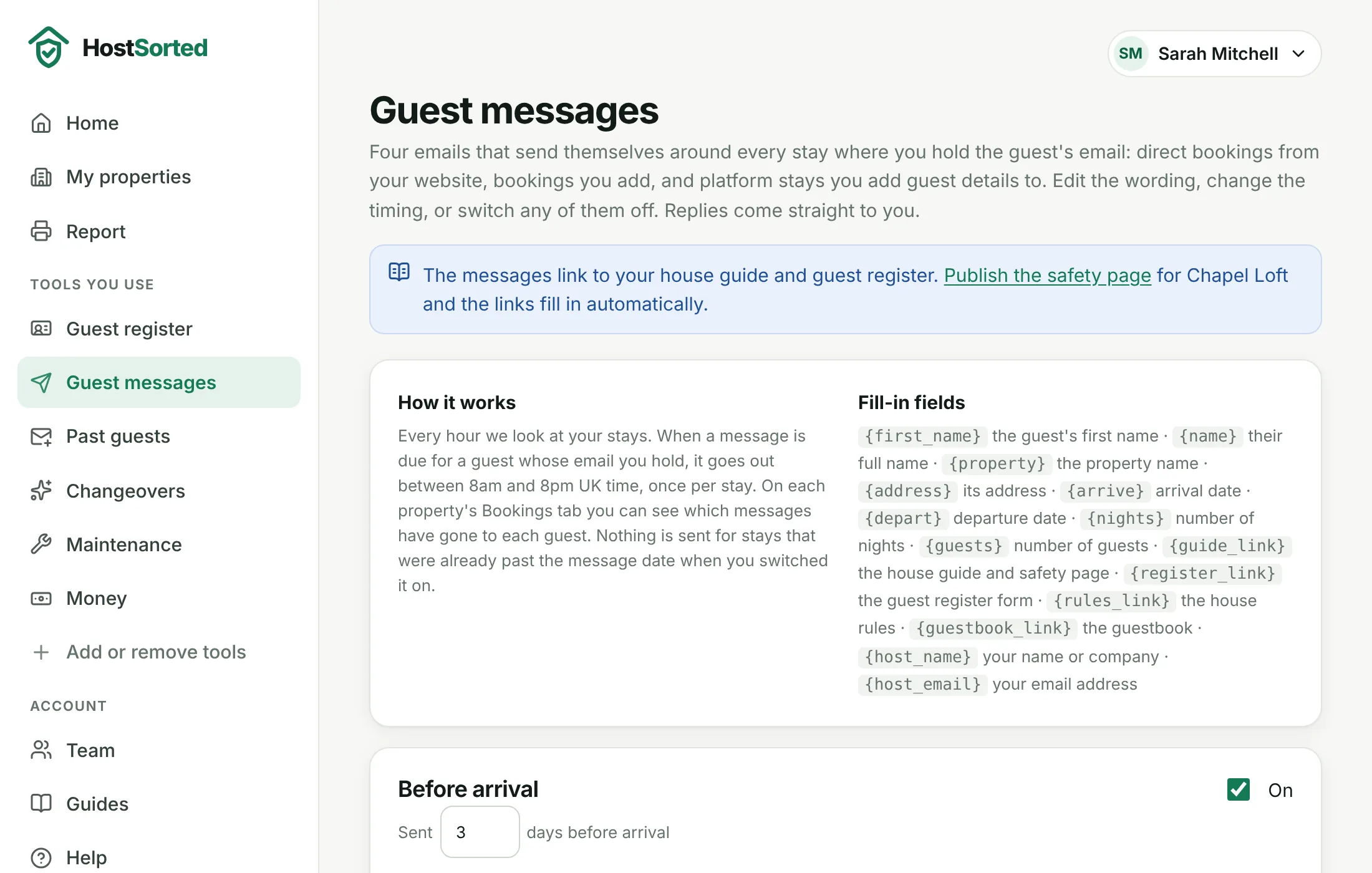
- Switch on Guest messages under Features (Add or remove tools in the sidebar), then open Guest messages in the sidebar.
- Each of the four messages has our wording and timing. Tick "On" for the ones you want, change the days before or after, and edit the subject and text. Fields in curly brackets, such as {first_name} and {guide_link}, fill in for each guest.
- Click Save and email me a test to see exactly what a guest gets, with your first property's details.
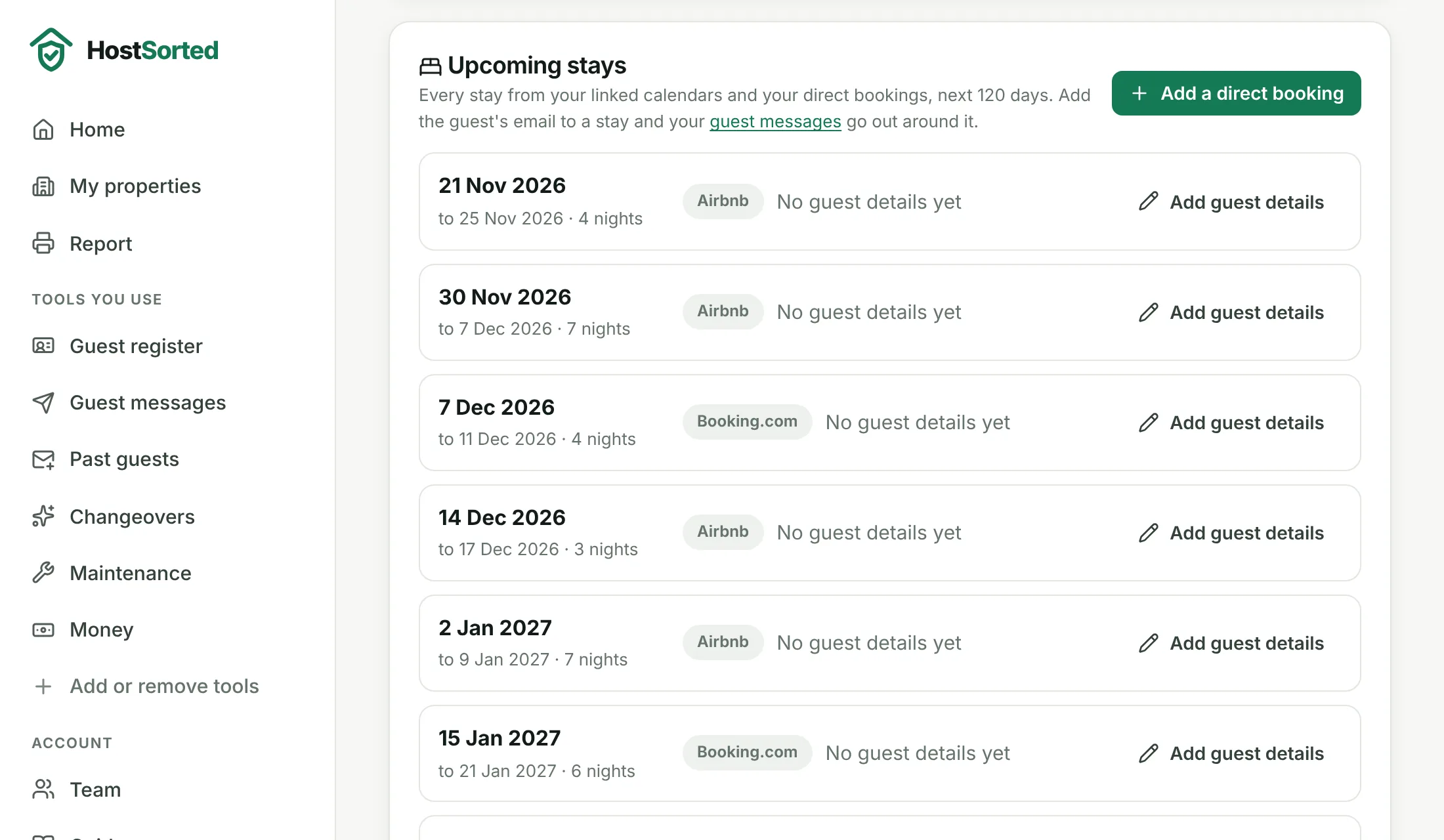
- Messages go to guests whose email you hold: direct bookings from your website already have it. For Airbnb, Booking.com and Vrbo stays, open the property's Bookings tab, click Add guest details on the stay and enter the guest's email.
- On the Bookings tab, the small envelopes next to each guest show which messages have gone out.
Good to know
- Publish the safety page or house guide first, so {guide_link}, {register_link} and {rules_link} have something to point at. Links with nothing behind them are left out of the email.
- Messages are sent between 8am and 8pm UK time, once per stay. Switching the feature on never sends to stays whose message date has already passed.
- Replies go to your account email, not to HostSorted.
Screenshots show a sample account with made-up properties. Still stuck? Email [email protected] and we'll help.