Add direct bookings and stop double bookings
Record bookings you take yourself and give the platforms a calendar link so the dates are blocked everywhere.
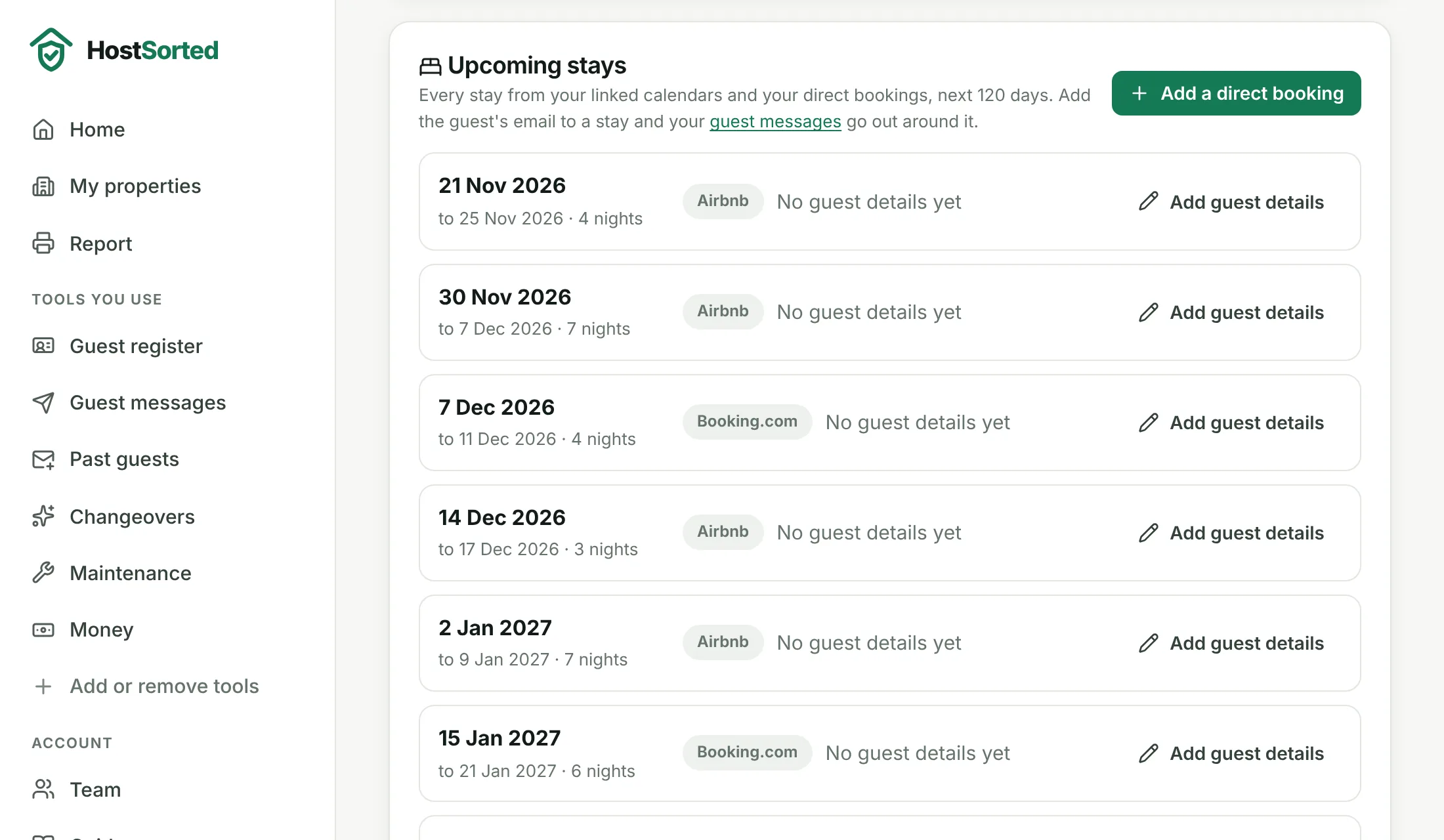
- Open a property and go to the Bookings tab. Upcoming stays lists everything from your linked calendars and your direct bookings for the next 120 days.
- Click Add a direct booking for a booking you took by phone, email or from a returning guest. Enter the dates, the guest's name and email, and save. Dates that clash with an existing stay are refused.
- Under Stop double bookings, copy the calendar link and add it to each platform: Airbnb (Listing, Availability, Connect calendars, Import calendar), Booking.com (Extranet, Rates and availability, Sync calendars, Import) and Vrbo (Calendar, Import and export, Import).
- From then on, every direct booking blocks the dates on those platforms within a few hours, and bookings accepted on your HostSorted website do the same automatically.
- To cancel a direct booking, click Edit on the stay and then Cancel booking. The dates are released straight away.
Good to know
- Platforms re-check imported calendars every few hours, so confirm direct bookings as soon as you take them.
- The link only shares dates, never names or prices.
- Together with the calendars you import, this gives you two-way calendar sync without paying for a channel manager.
Screenshots show a sample account with made-up properties. Still stuck? Email [email protected] and we'll help.